


The sky is blue, right? But what if it’s too blue? Maybe you have an image that you want to change the color of the sky and turn into something more purple.
Or maybe there’s a logo or text on your website that has an ugly color and you need it to be white instead. Whatever the reason, having the ability to change any color in an image is very handy.
In this article, we will be showing you how easy it is to change a particular color using the Color Picker in Cartoonize.
Try This On Your Own Photo In 60 Seconds
Upload your image, apply pro edits instantly, and export in high quality.
Fast workflow | Beginner friendly | Browser based
Changing Color Using The Color Picker
Step 1: Open Cartoonize and Upload your image.

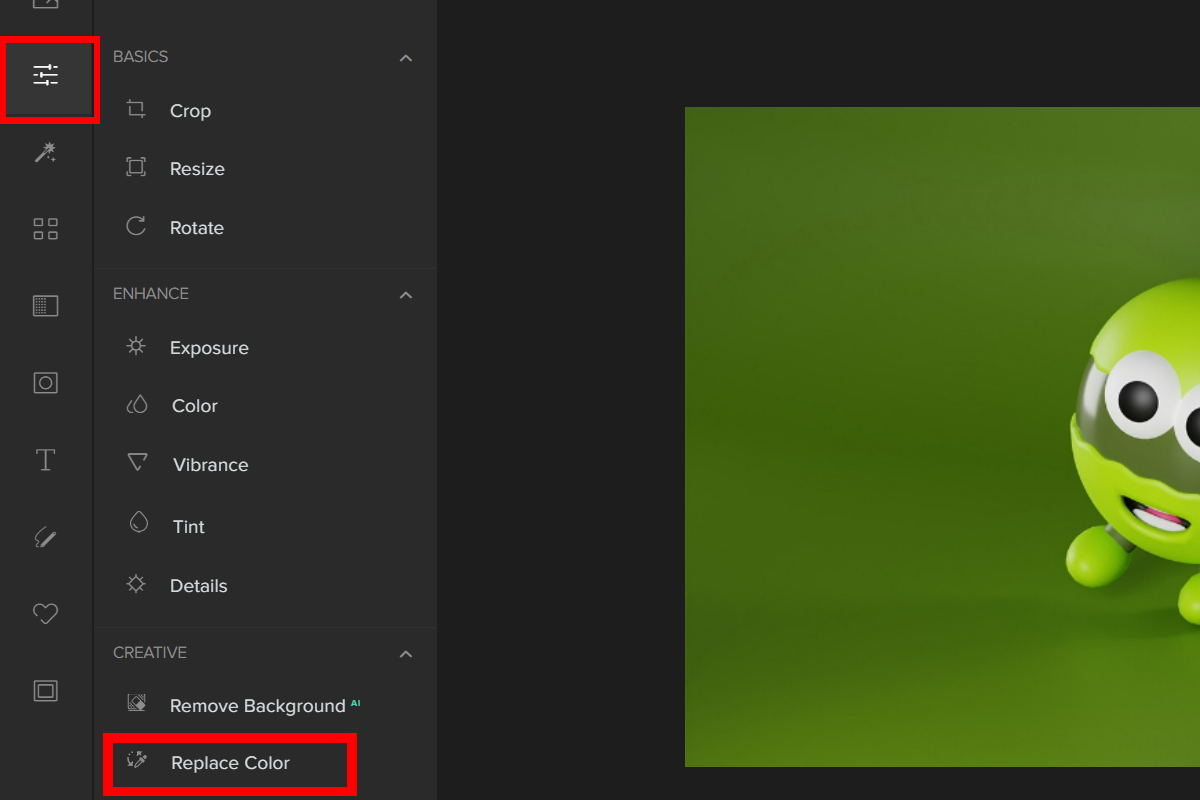
Step 2: Navigate to Edit — Replace Color.
Step 3: To obtain the desired color, use the Color picker and then click anywhere on the image to sample a color and set it as the From color. The same applies to To color.
Another way to change the color is to use a hexadecimal code. Here are the basic hexacodes you can use:
| Red | #FF0000 |
| Blue | #0000FF |
| Green | #00FF00 |
| Yellow | #FFFF00 |
| Orange | #FFA500 |
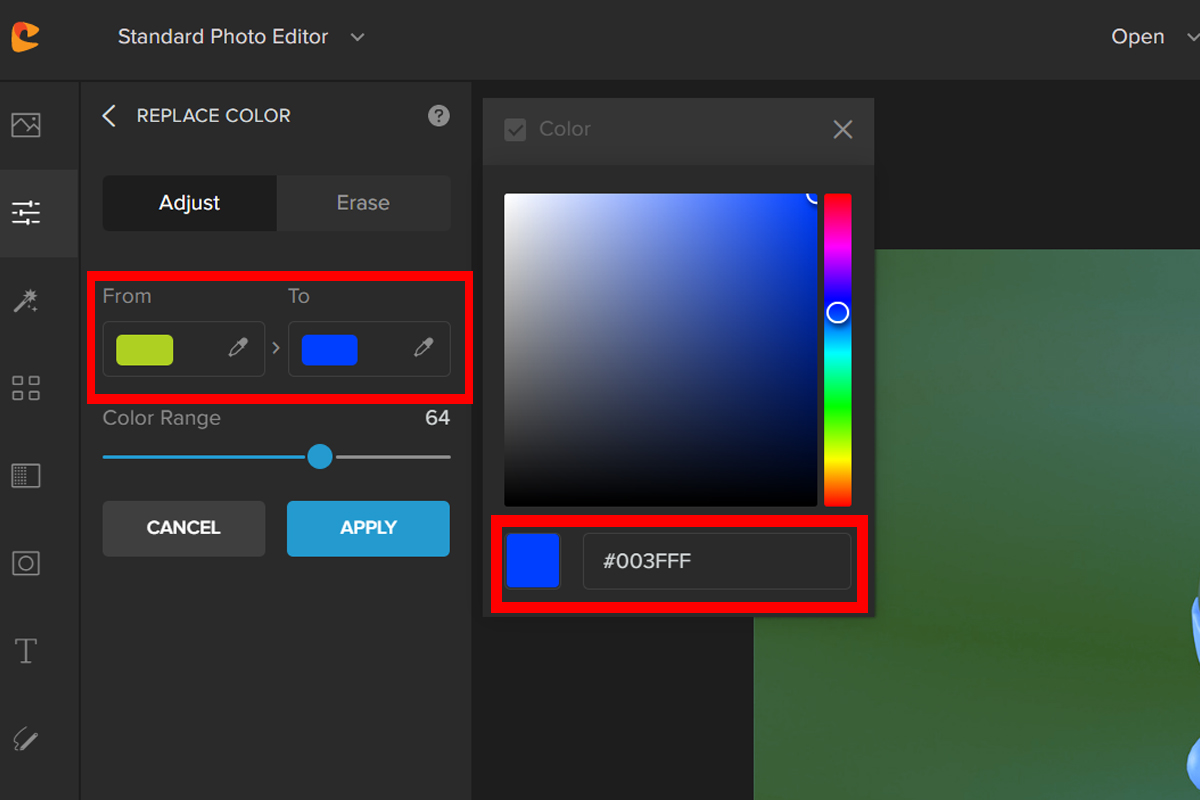
Here’s the before and after:


Conclusion
I hope this blog has helped you to understand the basics of replacing colors in an image using the Color Picker in Cartoonize. If you have any questions or comments, please feel free to leave them in the comments section below.
Ready To Create Your Version?
Put this guide into action now. Start editing your photo directly in Cartoonize and export your final image today.
