


• Tools
    • Column 1
      • Essential
        • Photo Editor
        • Background Remover
        • Image Cropper
        • Image Resizer
        • Image Flipper
        • Image Brightener
        • Image Darkener
        • Text Editor
        • Color Replacer
        • Photo Blur
    • Column 2
      • Filters & Effects
        • Photo Cartoonizer
        • NFT Maker
        • Photo to Painting
        • Photo to Drawing
        • Photo to Sketch
        • Image Posterizer
        • Color Inverter
        • Sepia Converter
        • Grayscale Images
        • Photo Filters
        • Photo Frames
        • FX Cartoonizer
    • Column 6
      • Overlays & Masks
        • Image Masking
        • Mystical Fog
        • Falling Rain
        • Falling Snow
        • Add Glitch
        • Add Bokeh
        • Add Light Leaks
        • Image Blender
    • Column 3
      • Social Media
        • Profile Picture Maker
        • Avatar Maker
        • Meme Generator
        • Watermark Photos
        • Twitch Banner Maker
        • Photo Combiner
    • Column 4
      • Converters
        • PNG to JPG
        • JPG to PDF
        • PNG Converter
        • PNG Maker
        • Image Compressor
    • Column 5
      • Creative
        • Image Pixelator
        • Color Splash
        • Draw on Pictures
        • Background Changer
        • Hair Color Changer
        • Color Picker
        • Circle Cropper
  • Features
  • Pricing
  • Learn
  • Support
  • More
    • About us
    • Affiliate program
    • Contact us
© All rights reserved.
Photo to Cartoon – Cartoonize Yourself – Character Maker Photo to Cartoon – Cartoonize Yourself – Character Maker
  • AI Tools new
    • Face Restoration
    • Inpainting & Removal
    • Background Removal
    • Image Upscale
    • Image De-oldify
    • Face to Sticker
    • Prompt Generation
    • Photo to Anime
  • Tools
    • Column 1
      • Essential
        • Photo Editor
        • Background Remover
        • Image Cropper
        • Image Resizer
        • Image Flipper
        • Image Brightener
        • Image Darkener
        • Text Editor
        • Color Replacer
        • Photo Blur
    • Column 2
      • Filters & Effects
        • Photo Cartoonizer
        • NFT Maker
        • Photo to Painting
        • Photo to Drawing
        • Photo to Sketch
        • Image Posterizer
        • Color Inverter
        • Sepia Converter
        • Grayscale Images
        • Photo Filters
        • Photo Frames
        • FX Cartoonizer
    • Column 6
      • Overlays & Masks
        • Image Masking
        • Mystical Fog
        • Falling Rain
        • Falling Snow
        • Add Glitch
        • Add Bokeh
        • Add Light Leaks
        • Image Blender
    • Column 3
      • Social Media
        • Profile Picture Maker
        • Avatar Maker
        • Meme Generator
        • Watermark Photos
        • Twitch Banner Maker
        • Photo Combiner
    • Column 4
      • Converters
        • PNG to JPG
        • JPG to PDF
        • PNG Converter
        • PNG Maker
        • Image Compressor
    • Column 5
      • Creative
        • Image Pixelator
        • Color Splash
        • Draw on Pictures
        • Background Changer
        • Hair Color Changer
        • Color Picker
        • Circle Cropper
  • Features
  • Pricing
  • Learn
Get started
Sign in

Sign in

Photo to Cartoon – Cartoonize Yourself – Character Maker

How to Quickly & Easily Add Rain Overlay to a Photo

Home / Learn / Blog / How to Quickly & Easily Add Rain Overlay to a Photo
By Editorial inBlog, Tutorials

Have you ever wanted to create your own rain effect in photos? Well, I’m here to tell you that it’s not as difficult as you think. In this tutorial, I’m going to show you how to create a photo of rain by using the Colorcinch and inserting it into an existing picture.

It may sound complicated but don’t worry! This is going to be fun! Let’s get started!

Quickly Add Rain to a Photo Using Colorcinch

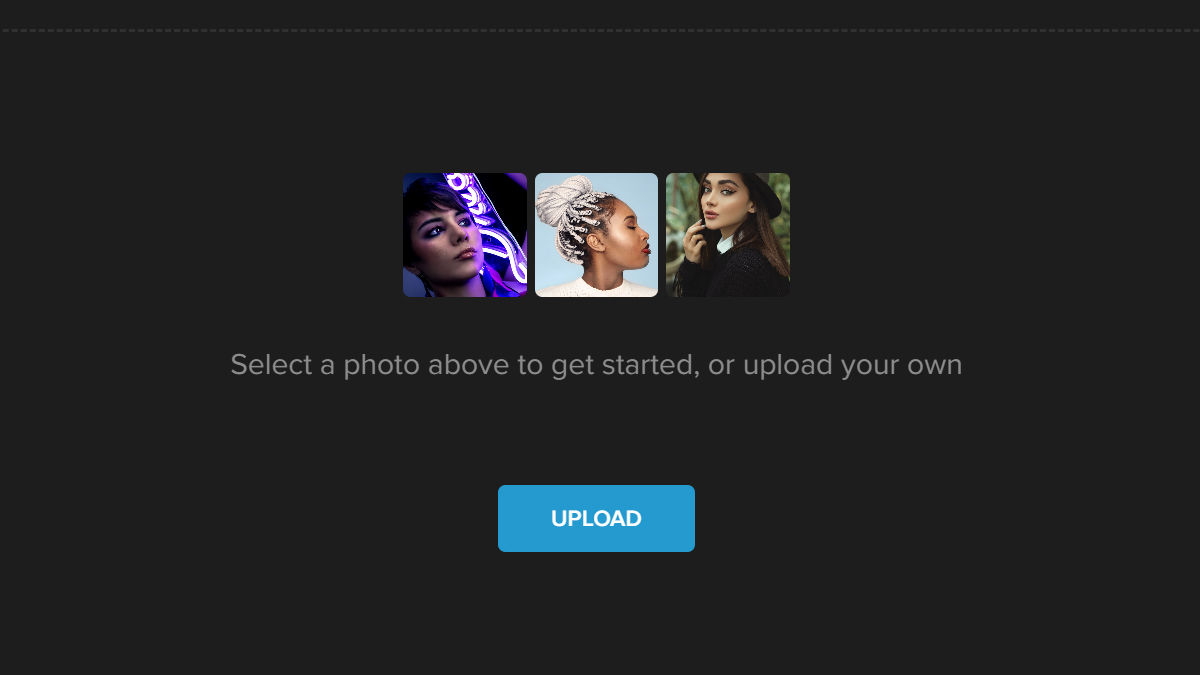
Step 1: Open Colorcinch and Upload an image.
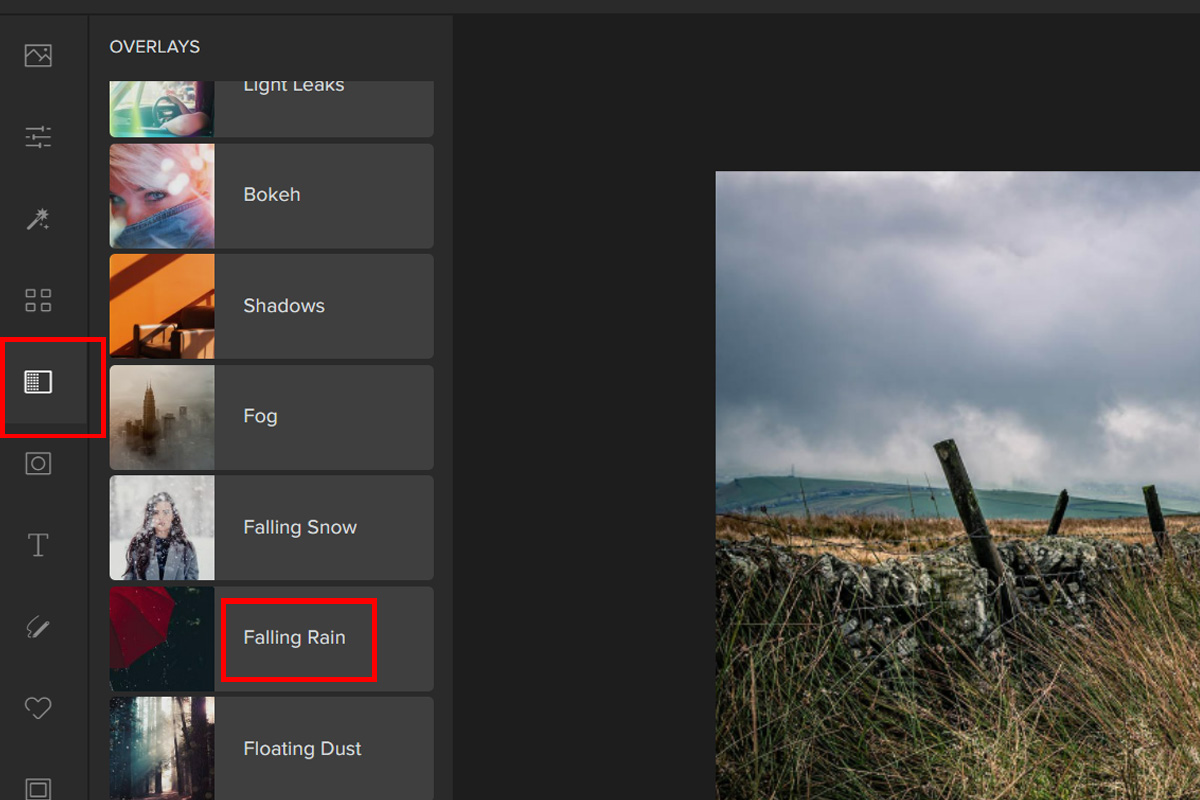
Step 2: Navigate to Overlays on the left side of the panel and click on Falling Rain.
Step 3: Pick a Falling Rain effect. Adjust the filter by the Slider or by clicking on the settings button and experiment with the different Blend Modes.
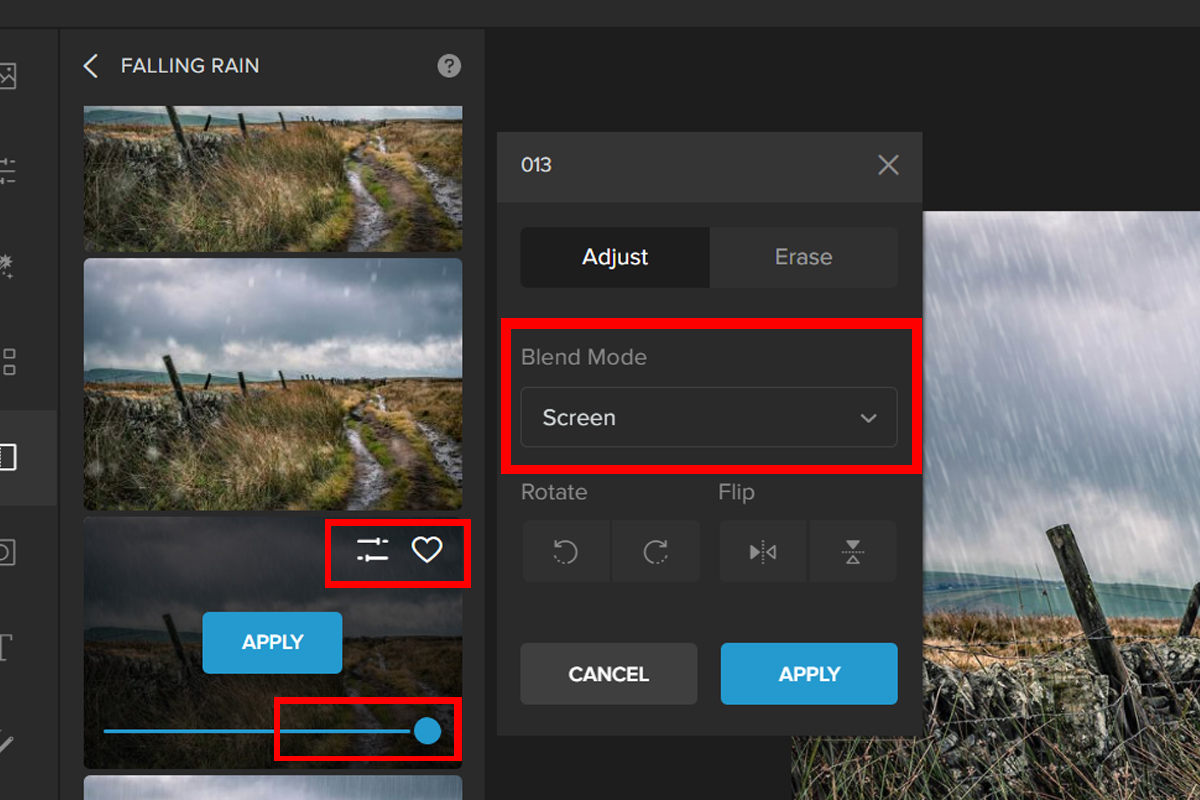
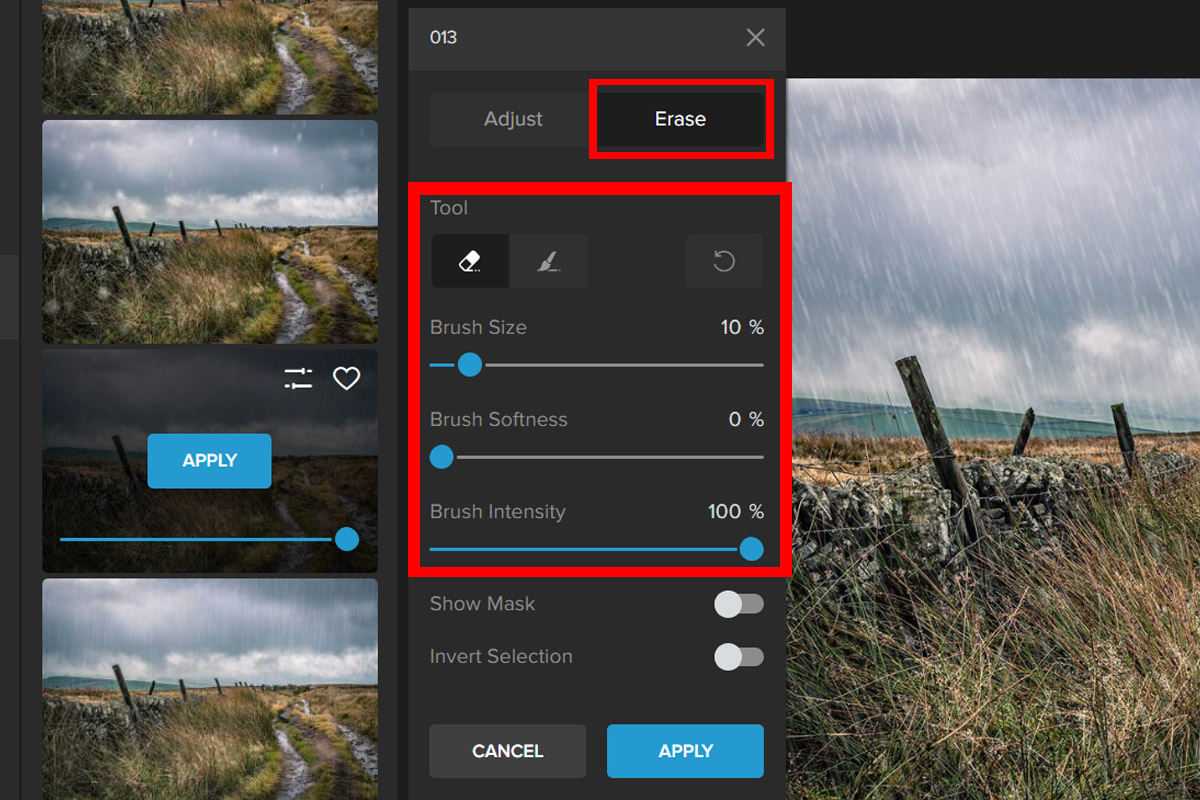
Step 4: You can also remove the overlay effect from areas where you don’t want it. To do this, click the tab labeled Erase. Change the Brush settings and then paint over an area to remove the effect.
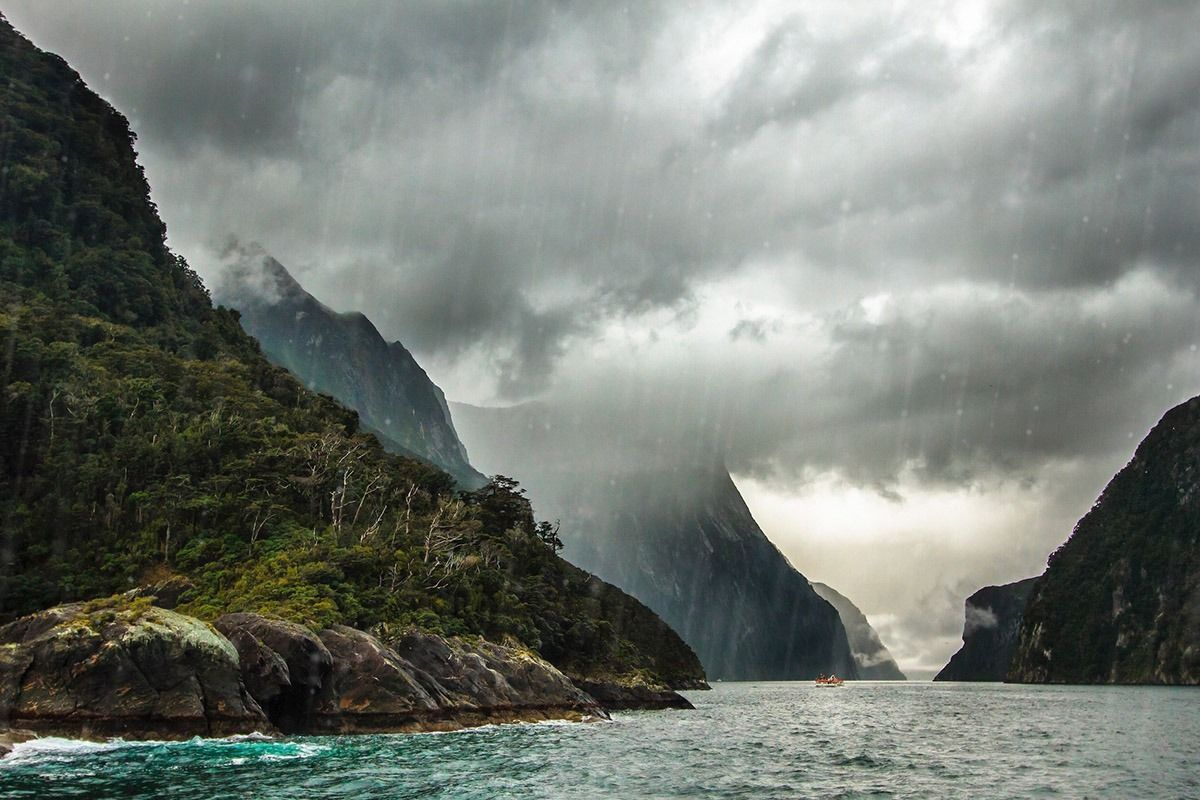
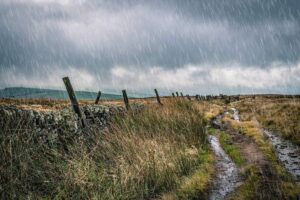
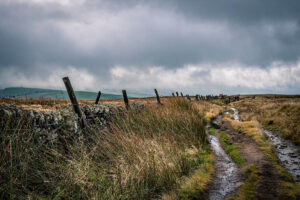
Here is the final look:
e
R1

Conclusion

The most important thing to remember when you’re using the rain effect in your photos is that it’s not just about the rain. It’s about the story behind it, and how it affects the people and objects around you.

If you find this article helpful, please do share and like!

Overlay effectRain effectRain effect on photosRain overlayRain showerrainy season
137 Posts
Editorial
  • How to Quickly Posterize a Photo Online
    Previous PostHow to Quickly Posterize a Photo Online
  • Next PostHow to Draw on Pictures in Colorcinch
    How to Quickly Posterize a Photo Online

Related Posts

Aesthetic Drawing Ideas & Inspiration
Blog Creative

Aesthetic Drawing Ideas & Inspiration

Pastel Color Palette: 25 Beautiful Soft Color Combinations
Blog Creative

Pastel Color Palette: 25 Beautiful Soft Color Combinations

Shape in Photography Guide
Blog Creative

Shape in Photography Guide

Winter Aesthetic: Capture & Edit Cozy Photos
Blog Creative

Winter Aesthetic: Capture & Edit Cozy Photos

colorcinch-dark

All Rights Reserved
© Colorcinch

Product

  • Home
  • Get started
  • Features
  • Pricing
More
  • Image Cartoonizer
  • Image Cartoonizer Premium
  • Image Cartoonizer for PC
  • Sitemap

Company

  • About us
  • Leadership
  • Careers
  • Affiliate program
  • Contact us

Information

  • Getting started
  • Online Cartoonizer
  • FX Cartoonizer
  • FAQ
  • Blog
  • Support

Subscribe to our newsletter:

Product of eVeek, LLC

© Colorcinch. All Rights Reserved.

Terms of Service  Privacy Policy  Disclaimers

colorcinch-dark
English
  • English
  • French
  • Spanish
  • Indonesian
  • Turkish
  • Arabic
  • German
  • Italian
  • Portuguese
  • Russian

Terms of Service       Privacy Policy      Disclaimers

  • Home
  • Get started
  • Features
  • Pricing
Copy

Forgot password