


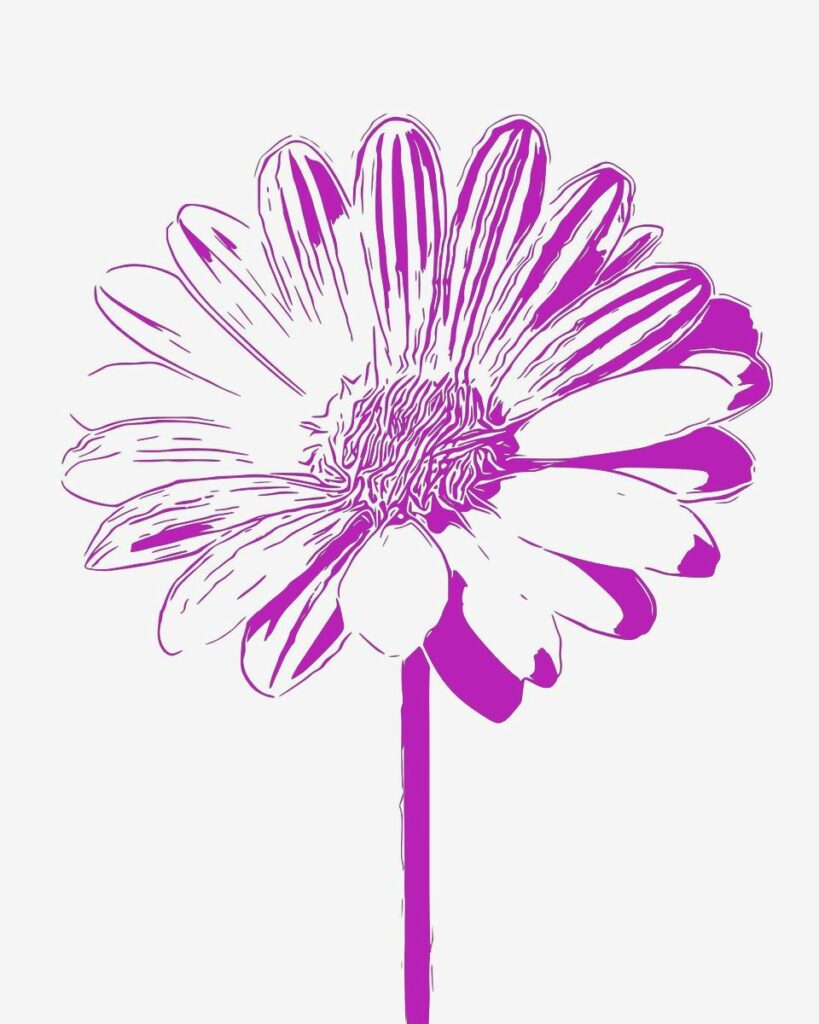
Pen drawings have a way of cutting through noise. Clean lines, strong contrast, and a stripped-down aesthetic make them feel intentional—almost editorial. And lately, more creators aren’t just drawing from scratch. They’re taking existing photos and turning them into pen art that looks polished enough for blogs, portfolios, and social media.
If you’ve tried this before and ended up with something that looked like a generic filter, this guide is for you. We’ll focus on how to turn photos into pen drawings properly, while still grounding the process in what pen art actually is and why it works so well in photography.
What Is a Pen Drawing?
Pen drawing, or pen art, is a style of illustration created using ink pens instead of pencils. Because ink is permanent, artists rely on deliberate lines, contrast, and layering techniques to create depth and detail.
Traditional pen drawing techniques include:
- Hatching (parallel lines for shading)
- Cross-hatching (layered lines to deepen shadows)
- Stippling (dots to build tone)
- Line variation (thick and thin strokes for emphasis)
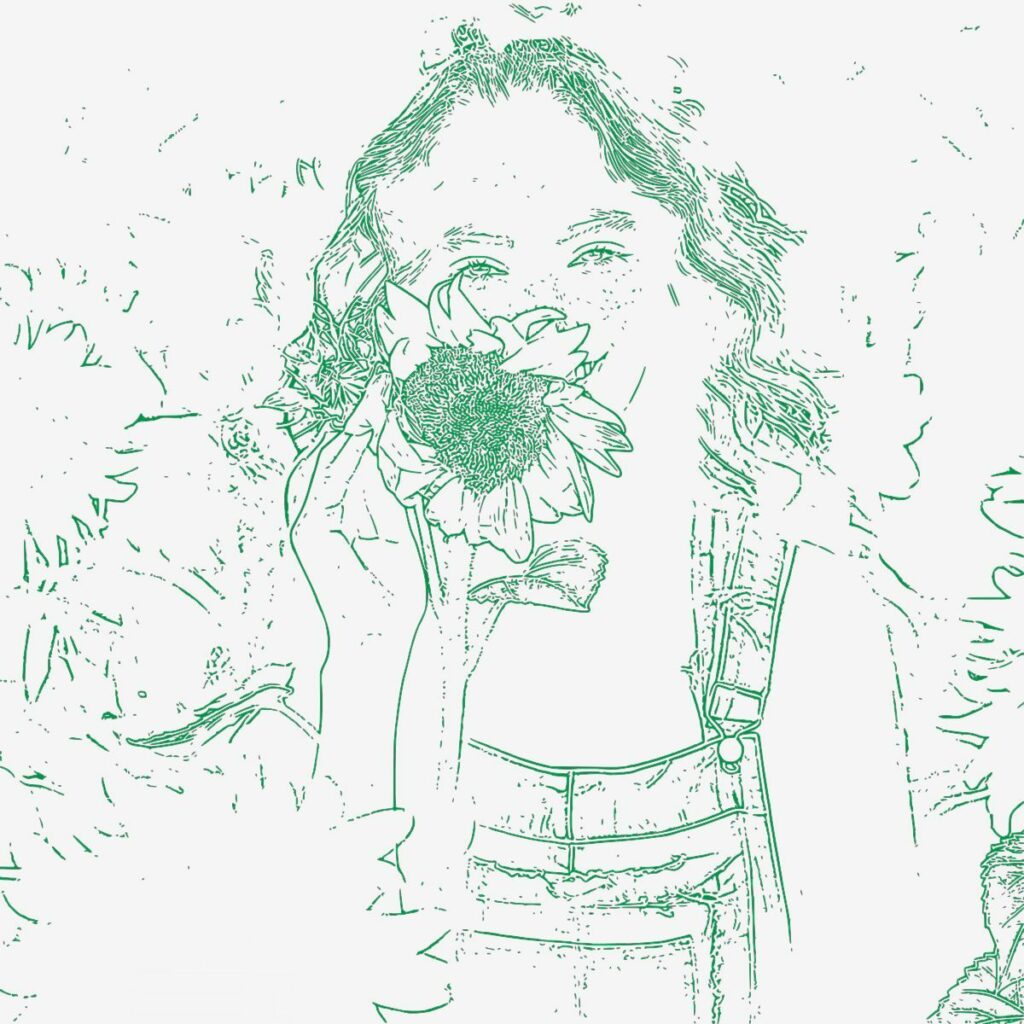
What makes pen drawings stand out is their clarity. There’s no smudging or blending like in pencil work—just clean, confident marks. That same principle carries over when you convert a photo into a pen drawing digitally. The goal isn’t just to apply a sketch effect, but to recreate that sharp, intentional look.
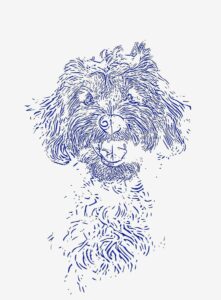
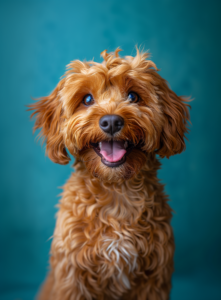
Turn your photo into pen drawing
Why Pen Art Is Trending (Especially in Photography)
Pen art has quietly become one of the most effective visual styles in digital content, especially for photography-based blogs and social media.
First, it creates a distinct visual identity. In a feed full of highly edited photos, a pen-style image feels different. It looks more crafted, less disposable.
Second, it’s incredibly effective for storytelling. By reducing an image to lines and contrast, you remove distractions and guide the viewer’s attention to the subject. This is why pen-style visuals are often used in editorial content, including narrative-driven blogs and case-based storytelling.
Third, high-contrast visuals naturally perform well. Black-and-white imagery with strong edges tends to stand out on platforms like Pinterest and in blog thumbnails.
Finally, accessibility plays a huge role. You no longer need advanced drawing skills to create pen art. With the right workflow, photographers and creators can convert images into pen drawings in minutes while still maintaining a high-quality result.
How to Turn a Photo into a Pen Drawing (Step-by-Step)
If you want a fast but polished result, using a dedicated tool like Cartoonize is one of the easiest ways to convert your photos into pen drawings—without sacrificing quality.
Here’s a simple step-by-step process you can follow:
Option 1: Use the Pen Art Effect
1.Upload your photo to Cartoonize.
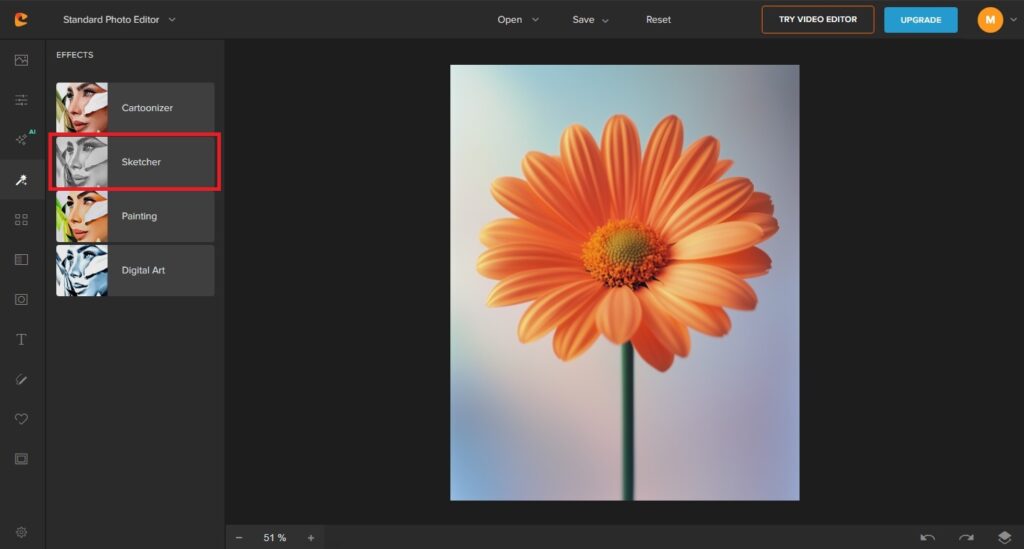
2. Click on the Sketcher effect. Choose a pen art style that fits your image.
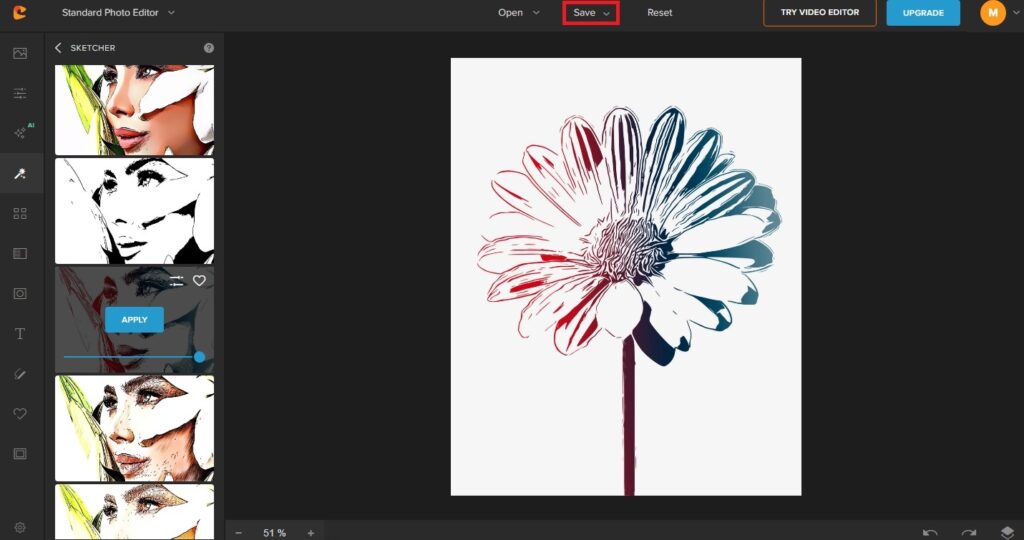
3. Adjust intensity and detail if needed .Save your final image.
This option is perfect if you want a ready-made pen drawing look with minimal effort. The built-in styles are designed to mimic real ink techniques, so you get clean lines and balanced contrast right away.
Option 2: Customize Your Pen Drawing (With Color Control)
If you want more creative control—especially over the pen color—this method works better:
1. Upload your photo to Cartoonize.
2. Click on the Sketcher effect and choose a black-and-white style.
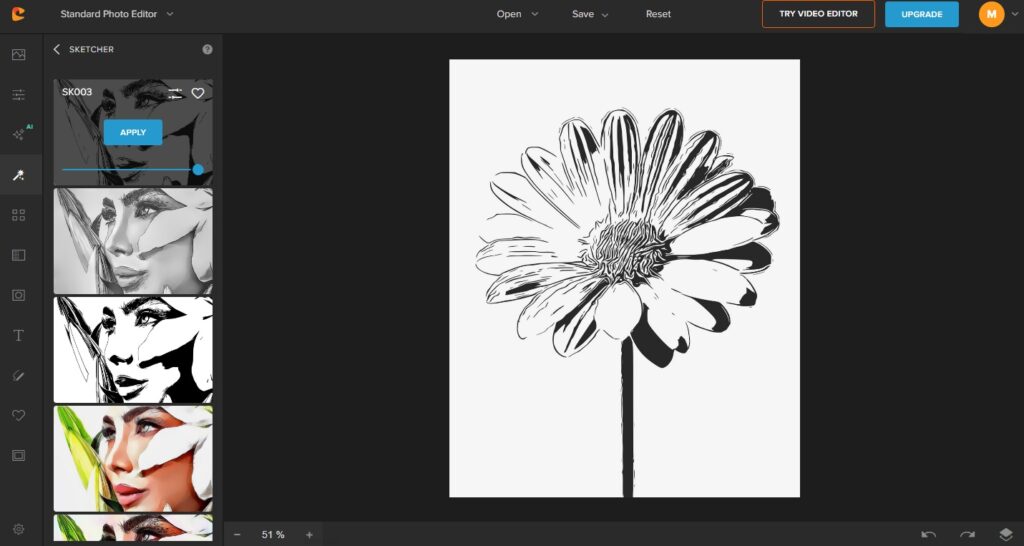
3. Apply the effect, then open the Color Replacer tool.
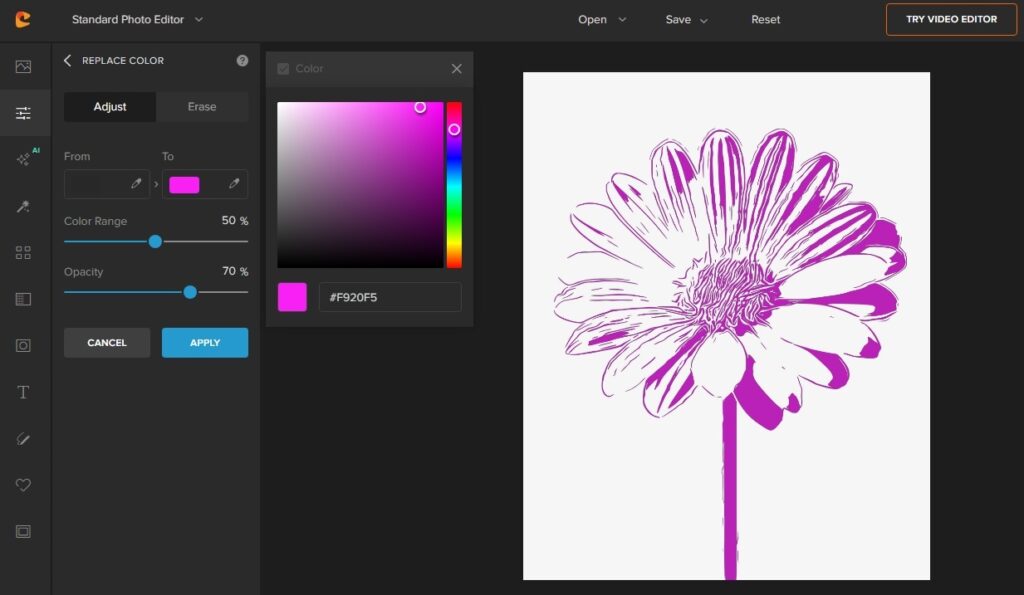
4. Fine-tune the look and save your image.
This approach is great if you’re aiming for something more unique than the standard black ink look. It lets you experiment with different tones while keeping the structure of a pen drawing intact.
Quick Tip
Whichever option you choose, don’t skip the final adjustments. Slight tweaks in contrast and detail can make your image look more refined and less like a generic filter.
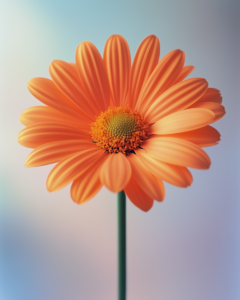
Try the Cartoonize Photo Color Changer
Creative Ways to Use Pen Drawings in Photography
Once you get comfortable with the process, this technique becomes more than just an effect—it becomes part of your visual style.
You can use pen drawings for:
- Blog feature images that feel more editorial
- Pinterest graphics that stand out in search results
- Story-driven visuals for narrative content
- Branding elements that look custom and cohesive
For photography blogs in particular, pen drawings offer a way to break visual repetition. Instead of relying only on photos, you introduce a different style that still feels connected to your work.
Final Thoughts
Turning photos into pen drawings isn’t just about applying an effect. It’s about understanding what makes pen art work—contrast, clarity, and intentional lines—and translating that into your editing process.
When done right, this technique can elevate your visuals, make your content more recognizable, and give your work a more polished, editorial feel.
Start with a strong photo, focus on contrast, and don’t stop at the first result. A few extra adjustments can be the difference between something that looks like a filter and something that actually looks like art.
